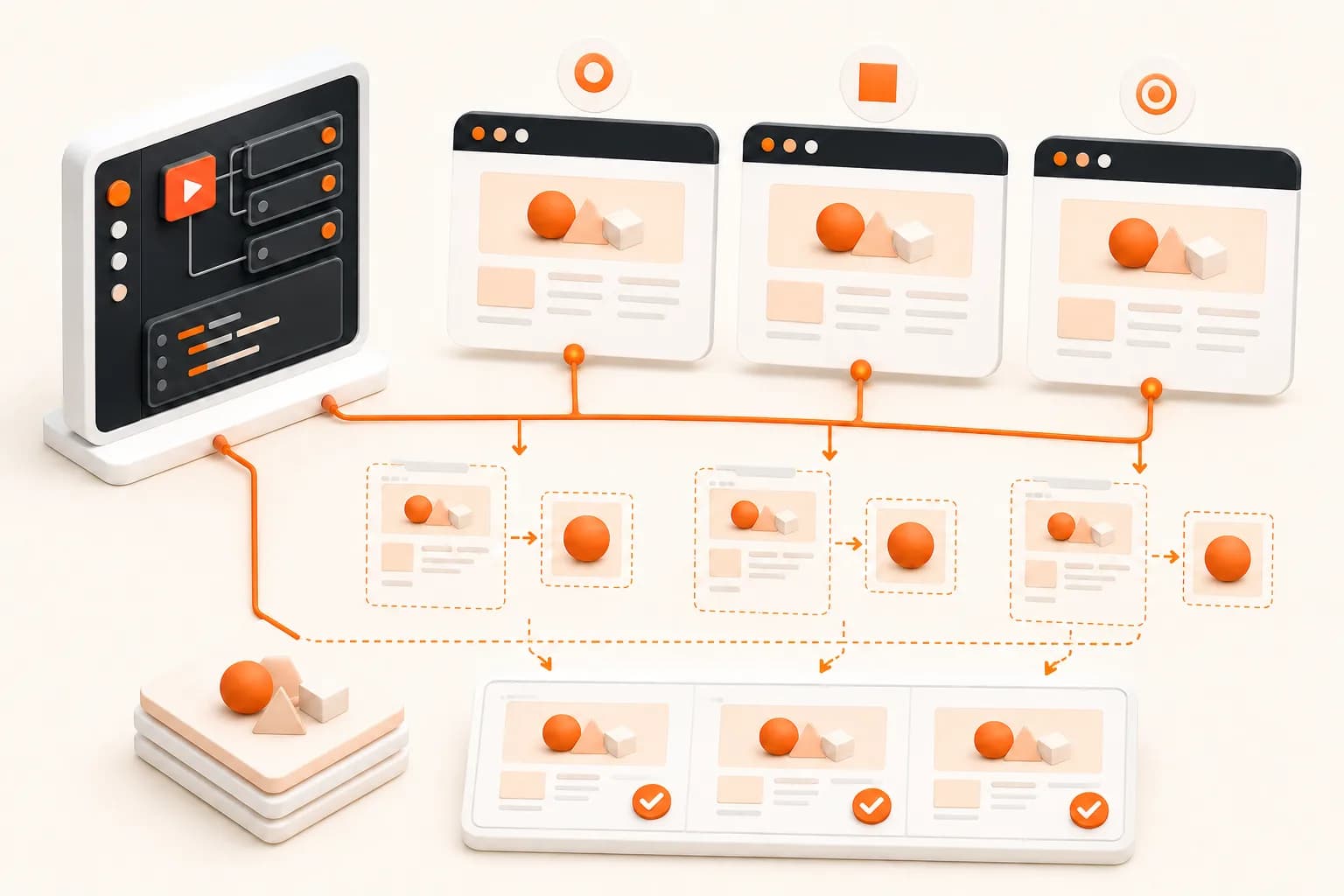
Install Playwright for screenshot testing
For a test suite, install @playwright/test and the browser binaries it manages. Keep the package and downloaded browsers aligned through the normal Playwright install command. Pinning the project dependency makes a browser upgrade an explicit reviewed change rather than an accidental baseline rewrite.
Define viewport, color scheme, locale, timezone, and other relevant context options in the Playwright project configuration. A screenshot without those inputs is hard to reproduce. If a page behaves differently by region or time, make that state explicit or replace the changing service with a deterministic test fixture.
Choose viewport, full page, or locator
page.screenshot() captures the current viewport by default. This is the right scope when the assertion concerns above-the-fold layout or a fixed application screen. Set path to write the image; omit it when code needs the returned bytes.
Set fullPage: true when the complete scrollable document is the subject. Long captures are sensitive to lazy loading, sticky elements, infinite lists, and content that changes during scroll. A full-page image is not automatically a better test: it creates a larger diff surface and can make an unrelated footer change fail a header assertion.
Use locator.screenshot() for a component, card, chart, dialog, or other bounded region. Element screenshots reduce noise and make ownership clearer. The locator must still identify the intended element reliably, and the element's surrounding state may influence its layout.
Wait for the state you mean to test
Navigation completion does not prove that every page-specific task has finished. A single-page application may hydrate after load; a chart may draw after data arrives; a web font may swap; a skeleton may disappear only after a business condition is met.
Wait for an application-level signal such as a meaningful locator, a response, or a controlled data state. Avoid a large arbitrary timeout as the primary strategy. It makes every run slower and can still be too short under load.
For fonts, wait until the document's font set reports readiness when typography is part of the assertion. For lazy media, drive the page through the intended state or test the component in a fixture that loads deterministically. Do not silently scroll an infinite feed and call the result stable.
Stabilize animations and volatile regions
Playwright's screenshot options can disable animations. That handles CSS animations and transitions according to the documented behavior, but it does not freeze every source of change. Video frames, canvas rendering, current timestamps, randomized recommendations, cursor blinking, ads, and live counters need separate treatment.
Use mask for a narrow region that is expected to change and is not part of the assertion. A mask should be a documented exception. If most of the page is masked, the test no longer protects meaningful behavior.
The style screenshot option can inject test-only CSS that pierces shadow DOM and applies during capture. It is useful for hiding a known cursor or pausing an application-owned effect. Keep that CSS next to the test and explain why each selector is excluded.
Build a trustworthy baseline workflow
Playwright Test's expect(page).toHaveScreenshot() compares the current capture with a stored snapshot. The first accepted run creates the reference. Later runs produce expected, actual, and diff artifacts when the result exceeds the comparison policy.
Generate baselines in the environment used for comparison. Playwright's documentation warns that screenshots vary with operating system, browser version, hardware, power source, headless mode, and other environmental factors. A container or controlled CI image can reduce that variance, but fonts and application data still need management.
Review baseline changes like code. A mass update command can make the suite green by approving a regression. Separate intended design updates from unrelated test maintenance, inspect the rendered diff, and let the responsible reviewer accept the new state.
Set thresholds without hiding regressions
Pixel-perfect comparison can be appropriate for a controlled component. A small tolerance can help with known antialiasing variance, but every tolerance weakens the assertion. Prefer making the environment stable before raising maxDiffPixels, maxDiffPixelRatio, or a per-pixel threshold.
A threshold answers whether a test should demand review. It does not decide whether the product is correct. Preserve the diff image and relevant request settings so a person can interpret the changed region.
Make screenshots useful in CI
Upload actual and diff artifacts on failure. Include the test name, browser project, commit, viewport, and retry number. Retrying can distinguish intermittent state from a persistent change, but a flaky first attempt should remain observable rather than disappearing from reports.
Avoid parallel tests that mutate the same account or baseline state. Give each test deterministic data and isolate user sessions. Use a web server readiness check rather than guessing how long the application needs to start.
Keep visual suites focused. A small set of representative routes and components can provide more signal than thousands of broad snapshots that reviewers habitually approve.
Playwright versus a screenshot API
Playwright is the right tool when the test must sign in, click, type, intercept requests, exercise several browsers, or inspect application state before capture. Your code owns the browser workflow and can assert behavior alongside pixels.
Snapshot Site is a different abstraction. The application submits a URL and output settings to a hosted website screenshot API, or sends two sources to the Visual Diff API. It does not replace arbitrary browser steps. It can remove browser fleet and image-comparison work from output-oriented services, scheduled page checks, and integrations that need a stable API result.
Use both when the boundaries fit: Playwright can validate authenticated interaction paths in CI, while an external SEO monitoring or ecommerce monitoring job checks public production pages on a schedule.
Production checklist
- Pin Playwright and install its matching browsers.
- Fix viewport, browser project, locale, timezone, color scheme, and relevant context.
- Seed deterministic data and wait for application-level readiness.
- Capture only the scope owned by the assertion.
- Disable animations and mask only documented volatile regions.
- Generate baselines in the comparison environment.
- Start with strict comparison and add tolerance only for measured noise.
- Upload expected, actual, and diff artifacts on failure.
- Review baseline updates rather than approving them mechanically.
- Revisit flaky screenshots as product or test defects, not harmless background noise.